Switching from Citavi to Zotero

To import a Citavi project into Zotero, follow these steps:

  1. Create a local copy of the cloud project
  2. Create a backup copy of the local project and unzip it
  3. Copy Citavi file attachments to the same folder as the extracted backup copy
  4. Import to Zotero

Quick help? Guides from other universities

In general, what can be imported from Citavi into Zotero?

  • Bibliography (with minor inaccuracies that will be corrected in Zotero; see here.)
  • PDF files/attachments, including markings (as annotations)
  • Categories become Collections in Zotero
  • Groups become Tags in Zotero
  • Keywords become Tags in Zotero
  • Knowledge Elements:
  1. The assignment of knowledge elements to categories is not carried over. Alternatively, you can assign tags.
  2. Information automatically captured in Citavi from highlights in PDF files is saved in Zotero as annotations and notes.
  3. Different types of knowledge are represented by different colors as annotations in Zotero
  4. Knowledge elements that have been imported into Zotero as notes can be inserted into Word with a citation.
  5. Knowledge items entered manually are imported into Zotero as notes. For these manually entered knowledge items, the exact citation location is imported only as text and should therefore be re-entered. (s. Was muss nach dem Import noch getan werden?)
  6. For knowledge items that are imported into Zotero only as notes, it is no longer possible to distinguish between different types of knowledge items (e.g., direct or indirect citations).
  • Tasks are imported into Zotero in a limited form, without links. You can manually assign them to entries or delete them later. All tasks can be found using the #todo tag. Alternatively, you can create a to-do list in Citavi beforehandn (Citavi handbook)

What else needs to be done after the import?

Linking Anthologies and Articles

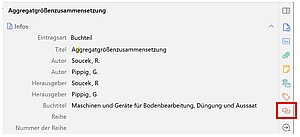
The link between the anthology and the article is not automatically created. You can create this link manually later. The articles are assigned the document type “Book Chapter” in Zotero. You can use the “Related” button to create a link between the book and the book chapter:


Correct any inaccuracies in bibliographic data manually if necessary

Examples:

  • Check the Citavi categories that have been imported into Zotero as collections and correct them if necessary.
  • Add any title additions from Citavi to the title field in Zotero, if necessary.
  • "Last checked" add this information to the “accessed” field in Zotero
  • Entries in the Citavi fields “Free Text 1–9” or “Text 1–9”: If necessary, add them to the “Extra” field in Zotero

(The KIM is currently working on an improved import filter from Citavi to Zotero, which will reduce the need for this post-processing.)

Using Knowledge Elements as Notes

Open the note. Delete the heading (which was the key message in Citavi) if you don't want it to appear in the citation in Word. You can add the source using the “Insert Citation” button:
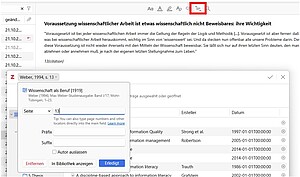
The page number associated with the quote appears at the bottom of the note. Be sure to include that as well.

Find duplicates

After importing, it is recommended that you check the database for duplicate entries. To do this, use the “Duplicate Entries” function or collection and merge identical references without losing any data.


Do you have questions or comments about this site? contact form